Script Planner Assistant▸
 AI Apps
 AI News
How to Use DeepSeek to Write Photoshop Scripts for One-Click Photo Editing
小编 ·

How to Use DeepSeek to Write Photoshop Scripts for One-Click Photo Editing
Nowadays there are many AI photo editing tools, such as AI Image Restoration, AI Cutout, Black & White Photo Colorization, etc., and they are very convenient. Now letting DeepSeek write Photoshop scripts for photo editing is a bit putting the cart before the horse. Of course, there are many AI photo editing tools, but they cannot meet your work needs 100%. So it's still necessary to learn some basic knowledge of generating PS scripts with DeepSeek.

Original image. License: ① Free for commercial use ② Attribution not required Source: pixabay @ Diem
1. Generate Photoshop Script
Tell DeepSeek directly:
"Please help me write a Photoshop script that imitates Japanese fresh style with indoor warm tones. My version is 2025."
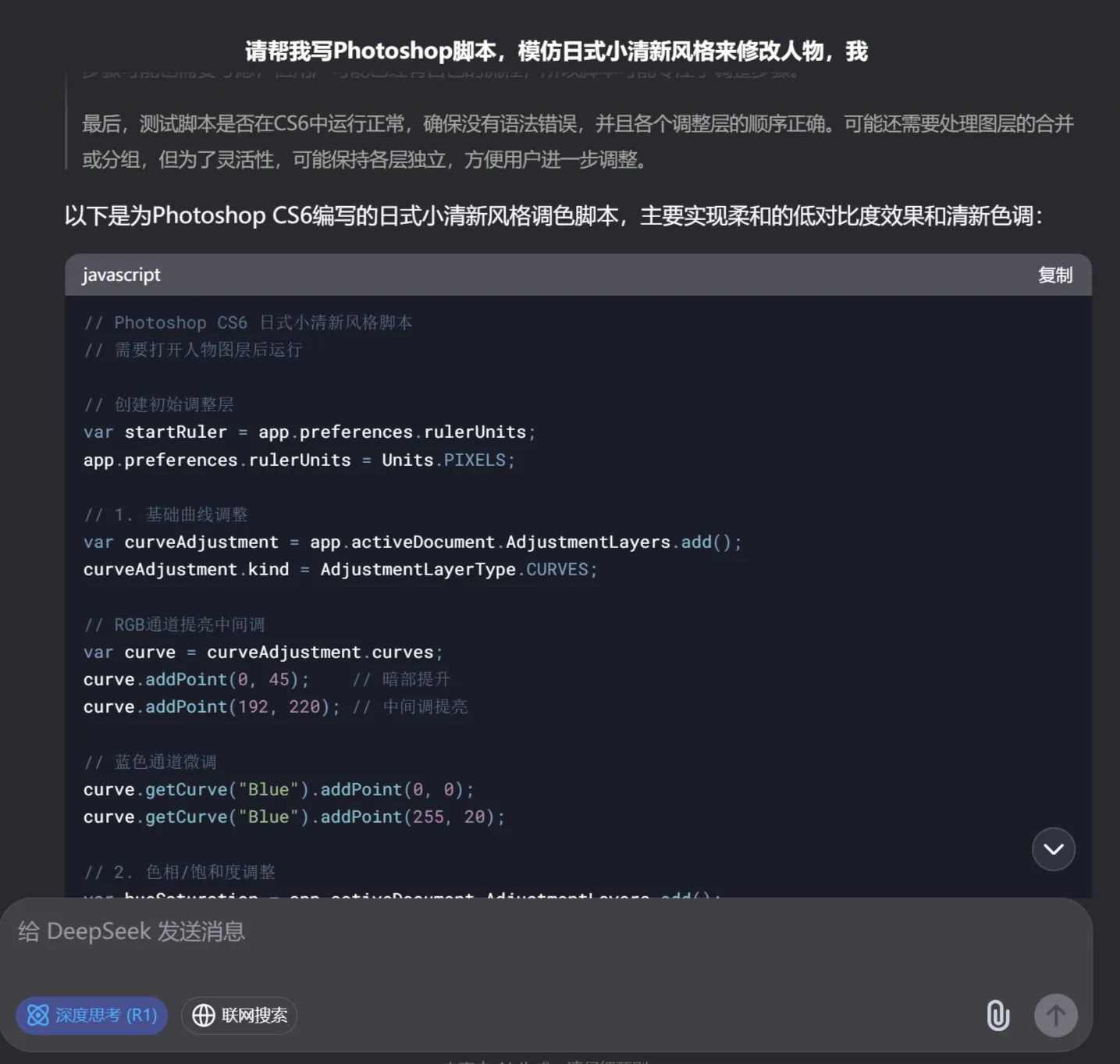
What needs to be noted here is to specify your Photoshop version clearly, otherwise the generated code will be incompatible with your PS version and will cause errors. The version number can be found in the PS software menu under [Help] [About Photoshop]
2. Script Processing
❶ Copy the PS script code generated by DeepSeek in the first step to a new Notepad file and save it.
❷ Format → Convert to Plain Text
❸ When saving, select utf-8 encoding
❹ Change the .txt extension to .jsx (Click OK when the warning pops up!)
3. Photoshop Processing
❶ Open Photoshop CS6.
❷ Open the image you want to edit.
❸ Go to the "File" menu, select "Scripts", and then select "Browse".
❹ Select the .jsx file you just saved and open it.
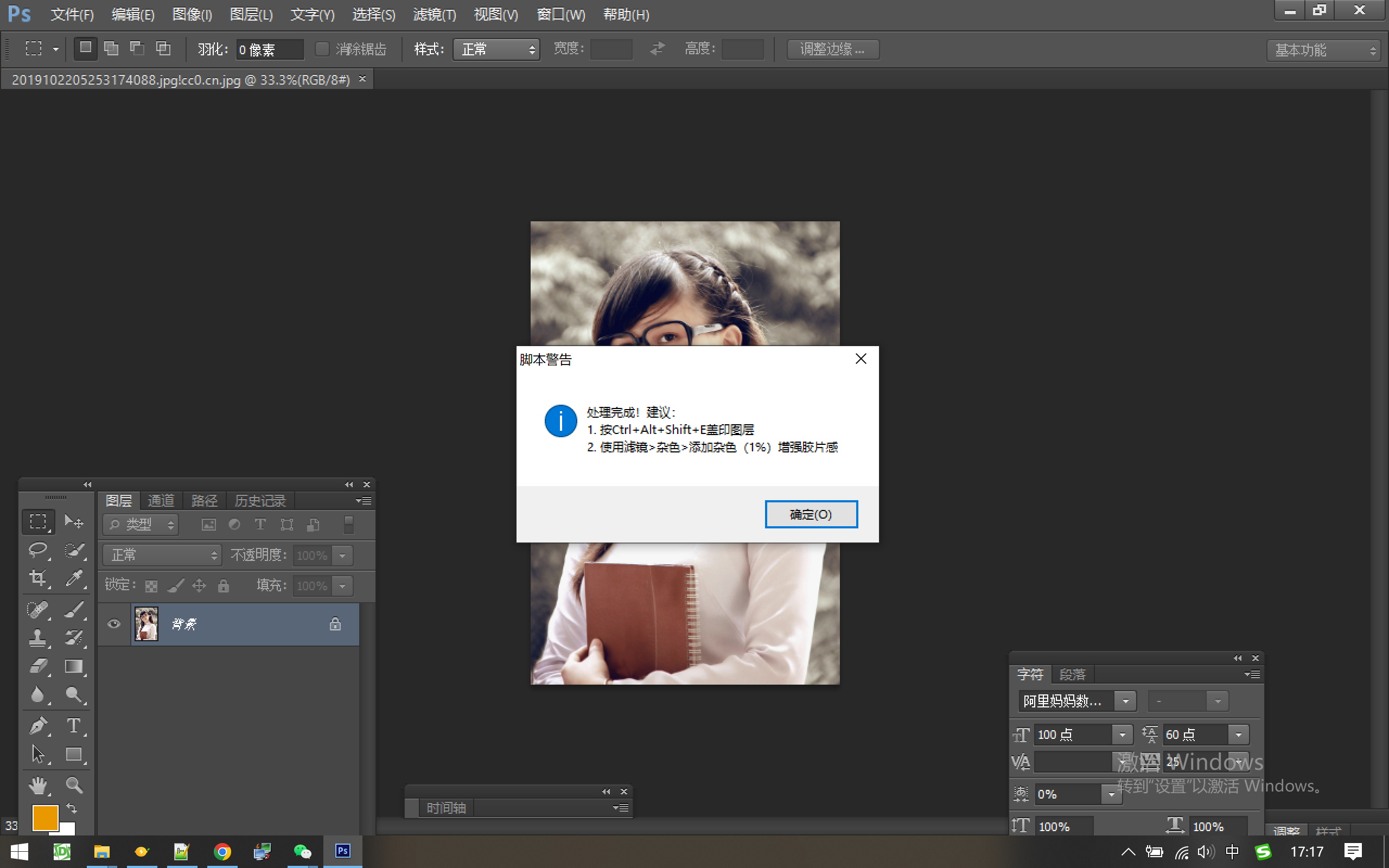

During this process, if an error pops up, upload the error image to DeepSeek and enter "Code has errors, see attachment for errors", and it will modify and regenerate the code for you.